
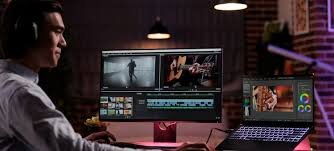
Final Cut Pro is one of the most advanced and widely used video editing software tools available today. Developed by Apple, it provides filmmakers, content creators, YouTubers, and professional editors with an array of powerful tools for creating high-quality videos. Final Cut Pro combines speed, efficiency, and professional-level editing features, allowing users to handle projects ranging from short social media clips to full-length films. The software is optimized for macOS and offers intuitive interfaces, customizable workflows, and support for high-resolution footage. Despite its capabilities, beginners can find it overwhelming at first, which is why understanding the software step by step is crucial for anyone seeking to edit videos efficiently. This guide aims to take you through every important aspect of Final Cut Pro, from setting up a project to advanced editing techniques and exporting professional-quality videos.
Setting Up Your Project
Before you begin editing, it is essential to create and set up your project properly. A well-organized project saves time and ensures that your media is managed efficiently. Final Cut Pro uses the concept of Libraries and Events to organize projects and media files. A Library acts as the container for all your project content, while Events function like folders that hold clips, audio files, and other assets. When creating a new project, it is important to choose the correct video resolution, frame rate, and storage location. Selecting the appropriate settings ensures that your video maintains quality and compatibility throughout the editing process. Importing media into Final Cut Pro is straightforward. You can drag and drop files directly from your computer into the library or use the import function to bring in clips, images, and audio. Properly naming files and organizing them into events at the start will make it easier to locate assets during the editing process.
Navigating the Final Cut Pro Interface
Understanding the Final Cut Pro interface is fundamental for efficient editing. The Timeline is the area where you arrange clips, trim content, and build your story. Video clips are placed on video tracks while audio is layered beneath in audio tracks, allowing editors to synchronize sound and picture seamlessly. The Viewer displays the content of the timeline, providing real-time feedback on your edits. This area allows you to check transitions, effects, and the overall flow of your project. The Browser contains all imported media, including videos, audio, and images, and allows you to search and organize files effectively. The Inspector is another critical component, giving detailed control over clip properties such as scale, rotation, opacity, audio levels, and applied effects. Mastering these key areas of the interface helps editors move efficiently between tasks, apply effects, and make precise adjustments without unnecessary delays.
Basic Video Editing Techniques
The foundation of any successful video project lies in mastering basic editing techniques. Trimming clips to remove unwanted portions, cutting footage to create precise timing, and arranging sequences logically are all critical for storytelling. Final Cut Pro provides multiple tools for these tasks. The Blade Tool allows you to split clips at specific points, while trimming tools enable smooth adjustments to in and out points. These tools help maintain a natural flow in your video and ensure that each scene transitions effectively to the next. Adding transitions between clips enhances the viewing experience, creating seamless visual continuity. While Final Cut Pro offers a wide range of built-in transitions, understanding how to adjust their duration and style using the Inspector ensures that they fit the tone and pacing of your video. Applying visual effects can also elevate the overall quality of your project. Effects such as color adjustments, filters, and text overlays allow editors to convey mood, focus attention, and add professional polish to their videos.
Working with Audio
Audio is a critical element of video production, often influencing the viewer’s perception of quality more than visuals alone. Final Cut Pro provides comprehensive tools for managing audio, from importing background music and voiceovers to adjusting volume levels and applying effects. Audio files are placed below video tracks in the timeline, allowing editors to synchronize sound with visuals accurately. Adjusting audio levels prevents certain clips from overpowering others, ensuring a balanced and professional mix. Fade-in and fade-out tools help create smooth transitions between audio clips, preventing abrupt changes that may distract viewers. Additionally, Final Cut Pro offers a wide range of audio effects, such as equalization, reverb, and compression, allowing editors to enhance clarity, tone, and presence. Proper audio management improves the overall quality of the video and contributes significantly to storytelling and audience engagement.
Color Correction and Grading
Color correction and grading are essential techniques for enhancing visual aesthetics in video editing. Color correction involves adjusting exposure, contrast, saturation, and white balance to ensure footage appears natural and consistent. This process corrects discrepancies between clips shot in different lighting conditions and provides a unified look across the project. Color grading, on the other hand, is a creative process that gives your video a distinct style or mood. Final Cut Pro offers built-in color grading tools and advanced controls, including color wheels, curves, and LUTs (Look-Up Tables), which allow editors to achieve cinematic looks. Proper use of color not only improves visual appeal but also enhances storytelling by evoking specific emotions and focusing the viewer’s attention on key elements.
Advanced Editing Techniques
As editors become more comfortable with Final Cut Pro, they can explore advanced techniques to elevate their work. Keyframing allows precise control over clip properties over time, enabling dynamic movement, scaling, rotation, and effect changes. Multi-cam editing provides the ability to sync and switch between multiple camera angles, which is essential for live events or narrative storytelling. Slow-motion and time-lapse effects can enhance the dramatic impact of a scene, while speed ramping offers creative transitions between fast and slow action. Combining these techniques with audio and color adjustments allows editors to create professional-quality videos that capture the viewer’s attention and deliver a polished final product.