
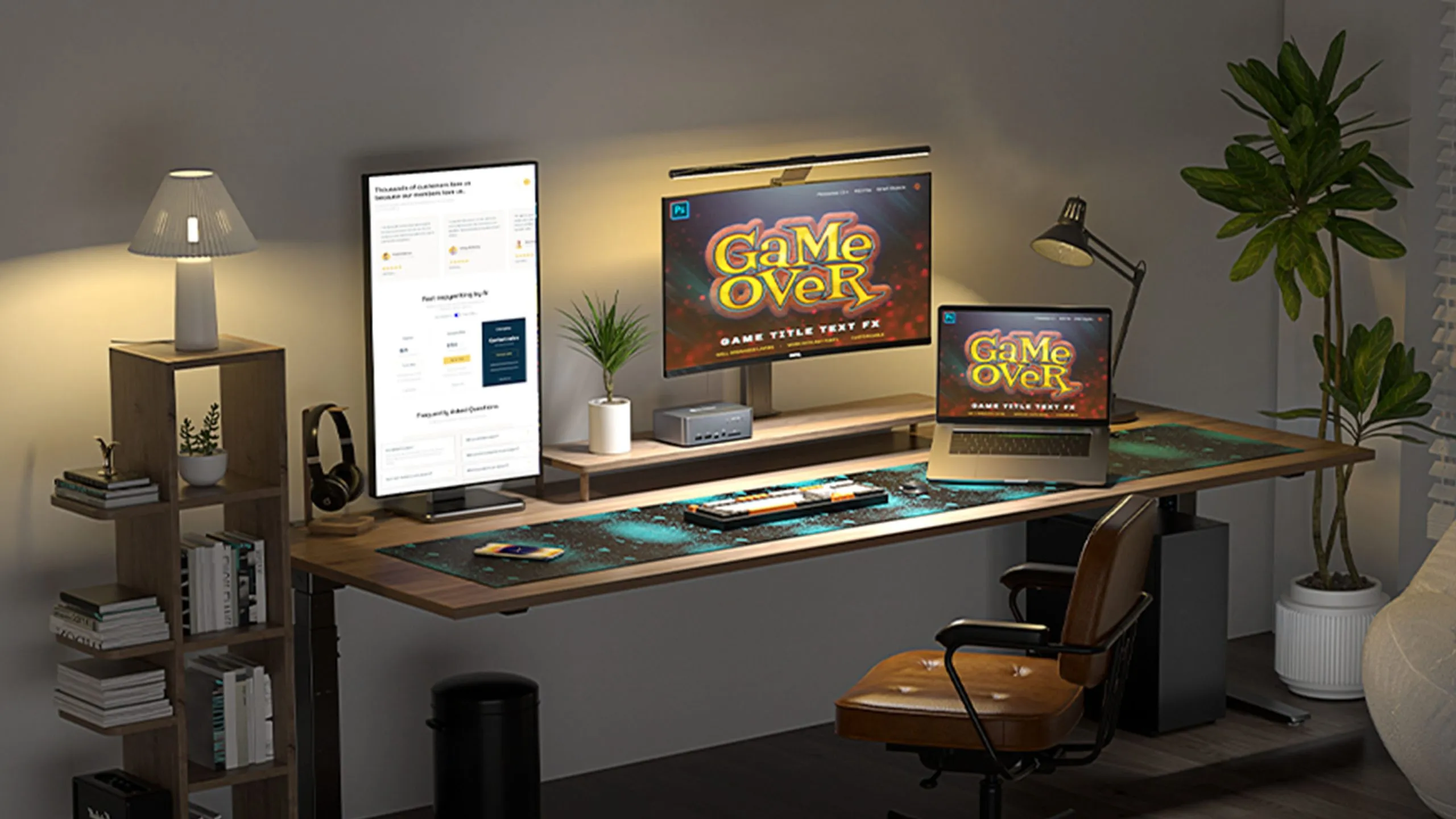
There comes a moment in every computer user’s life when a single screen begins to feel like a cage. You find yourself constantly alt-tabbing between windows, squishing applications side by side on a cramped display, or juggling a laptop screen and a desperate hope that you can keep track of everything at once. The frustration is universal, whether you are a student trying to research and write simultaneously, a professional juggling spreadsheets and email, or a creative sorting through endless layers in design software. The solution to this frustration is elegant in its simplicity: adding a second monitor. A dual monitor setup transforms your computing experience from a series of interruptions into a flowing workflow where everything has its place. You can have your email open on one screen while you work on the other. You can watch a tutorial on one display while following along on the other. You can extend your digital desktop into a panorama of productivity that makes the single-screen experience feel cramped and primitive by comparison.
The good news for beginners is that setting up dual monitors in 2026 is easier than it has ever been. Modern operating systems are designed with multi-display support baked in, graphics hardware has evolved to handle multiple screens as a standard feature, and the cables and connectors have largely standardized around a few common options. You do not need to be a computer technician or a gaming enthusiast to make this work. With a basic understanding of what you need and a step-by-step approach to the setup process, anyone can transform their workspace into a dual-monitor productivity powerhouse. This guide will walk you through every step of the journey, from assessing your current hardware and choosing the right second monitor to connecting everything, configuring your operating system, and optimizing your setup for comfort and efficiency. By the time you finish reading, you will have the knowledge and confidence to create a dual-monitor workspace that serves your needs and makes your time at the computer more pleasant and productive.
Assessing Your Current Hardware
Before you rush out to buy a new monitor, you need to understand what you are working with. The first step in any dual monitor setup is taking inventory of your existing computer hardware to determine what it can support. This assessment will guide every subsequent decision, from which monitor you buy to which cables you need to how you connect everything.
Start with your computer itself. If you are using a desktop computer, look at the back where all the cables connect. You are looking for video output ports, which are the connections where you would plug in a monitor. The most common types you will encounter are HDMI, DisplayPort, USB-C, and the older DVI and VGA ports. HDMI ports look like a wider, slightly flattened USB port with a distinctive trapezoidal shape. DisplayPort ports are similar but have one corner cut off at an angle. USB-C ports are small, oval, and reversible, and they are increasingly common on newer computers, particularly laptops. DVI ports are larger, white or cream-colored, and have a grid of pins inside. VGA ports are blue, trapezoidal, and have pins arranged in three rows. Make a note of which ports you have and how many of each. A desktop computer with a dedicated graphics card will typically have multiple ports, often a combination of HDMI and DisplayPort. A computer using integrated graphics, meaning the graphics processing is built into the motherboard rather than a separate card, may have fewer ports, sometimes only one.
If you are using a laptop, the assessment is similar but with the added consideration of portability. Look at the sides of your laptop for the same types of video output ports. Many modern laptops, particularly thin and light models, have moved to USB-C as their primary video output, often using a technology called DisplayPort Alt Mode that allows the USB-C port to carry video signals. Some laptops may have HDMI ports, and a few may have Mini DisplayPort, which is a smaller version of the full-size DisplayPort. If your laptop has only USB-C ports, you will need to ensure they support video output, as not all USB-C ports do. This information is typically available in your laptop’s specifications, which you can find by searching online for your laptop model number followed by specifications.
The next piece of the puzzle is your operating system. Both Windows and macOS have excellent multi-monitor support, but the specific steps for configuration differ slightly. Windows users should check which version they are running, with Windows 10 and Windows 11 both offering robust multi-display features. Mac users should know which version of macOS they are running, with recent versions like Sonoma and Ventura offering particularly smooth multi-monitor experiences. The age of your operating system matters because older versions may lack some of the automatic detection and configuration features that make setup easier.
Finally, consider what you will be using your dual monitors for. A writer or programmer has different needs than a video editor or gamer. If your work involves color-critical tasks like photo editing or video production, you will want monitors with good color accuracy and perhaps even color calibration capabilities. If you are a gamer, you may want monitors with high refresh rates and fast response times. If you primarily work with documents, email, and web browsing, your requirements are much simpler, and you can focus on size and resolution rather than specialized features. Understanding your use case will help you choose a second monitor that complements your existing display and serves your actual needs rather than simply buying whatever is on sale.
Choosing Your Second Monitor
With a clear understanding of your current hardware, you can now turn your attention to selecting the second monitor that will join your setup. This decision involves several interconnected factors, and taking the time to get it right will pay dividends in your daily satisfaction with the finished setup.
The first and most obvious consideration is size. Monitor sizes are measured diagonally, from one corner to the opposite corner, and common sizes range from 21 inches to 32 inches or even larger for ultrawide models. When adding a second monitor, you have a choice to make about whether you want it to match your existing monitor in size or whether you are comfortable with a mismatch. Matching sizes creates a visually clean and symmetrical setup, which many people find aesthetically pleasing. However, there is no technical requirement that your monitors match. You can absolutely use a 24-inch monitor alongside a 27-inch monitor, and many people do exactly that. The key consideration is how the size difference will affect your workflow. If you plan to use the monitors for different purposes, such as keeping reference materials on the smaller screen while working on the larger one, the size difference may be entirely appropriate.
Resolution is equally important. Resolution refers to the number of pixels on the screen, with common resolutions including Full HD at 1920 by 1080 pixels, Quad HD at 2560 by 1440 pixels, and 4K at 3840 by 2160 pixels. Higher resolutions provide sharper images and more screen real estate, allowing you to fit more windows and content on the display. However, higher resolutions also require more graphics processing power and can make text and interface elements appear smaller, which may require scaling adjustments in your operating system. When choosing a second monitor, you should consider its resolution in relation to your existing monitor. If your current monitor is 4K and you add a 1080p monitor, the difference in pixel density will be noticeable, with text appearing much sharper on the 4K screen. This is not necessarily a problem, but it is something to be aware of. Some people prefer to match resolutions for visual consistency, while others are comfortable with the mismatch.
The type of panel used in the monitor affects image quality, viewing angles, and color accuracy. The three main panel technologies are Twisted Nematic, In-Plane Switching, and Vertical Alignment. TN panels are the oldest technology and are generally the least expensive, but they offer poorer color reproduction and narrow viewing angles, meaning the image looks washed out if you are not looking straight at the screen. IPS panels offer excellent color accuracy and wide viewing angles, making them the preferred choice for most users, particularly those doing any kind of creative work. VA panels fall somewhere in between, offering better contrast than IPS but with viewing angles that are not quite as good. For most beginners, an IPS monitor represents the best balance of quality and value, providing good image quality without a premium price tag.
Refresh rate and response time are technical specifications that matter most for gaming and video. Refresh rate, measured in Hertz, indicates how many times per second the screen updates with new information. Standard monitors run at 60Hz, which is perfectly fine for office work and general use. Gaming monitors often run at 120Hz, 144Hz, or even higher, providing smoother motion that can improve the gaming experience. Response time, measured in milliseconds, indicates how quickly a pixel can change from one color to another. Lower response times reduce motion blur and ghosting in fast-moving content. If you are not a gamer, these specifications are less critical, and you can safely prioritize other features.
The physical connectivity options on the monitor itself must match what your computer can output. Look for monitors that have HDMI or DisplayPort inputs, as these are the most common and easiest to work with. Some monitors also include USB-C ports that can carry video, power, and data over a single cable, which is particularly convenient for laptop users. If you are connecting a laptop that charges over USB-C, a monitor with USB-C Power Delivery can keep your laptop powered through the same cable that carries the video signal, eliminating the need for a separate power cord. This is an elegant solution that reduces cable clutter and simplifies the connection process.
Finally, consider the ergonomics of the monitor stand. Many monitors come with basic stands that offer tilt adjustment but little else. Look for monitors with stands that offer height adjustment, swivel, and pivot capabilities. Being able to raise, lower, and rotate your monitors allows you to position them for optimal comfort, reducing neck strain and eye fatigue over long work sessions. If you cannot find a monitor with the ergonomic features you want at a price you like, you can always purchase separate monitor arms that attach to your desk and provide unlimited positioning flexibility. These arms are widely available and can transform even basic monitors into a highly adjustable setup.
Gathering the Necessary Cables and Adapters
With your second monitor selected and on its way, the next step is ensuring you have the right cables and adapters to connect everything. This is where the hardware assessment you performed earlier becomes essential. You need to bridge the gap between the video output ports on your computer and the video input ports on your new monitor, and that requires the correct physical connections.
The ideal scenario is a direct match. If your computer has an HDMI port and your monitor has an HDMI port, you simply need a standard HDMI cable, and you are good to go. The same applies to DisplayPort, USB-C, DVI, or VGA. A direct connection with a standard cable is always the simplest and most reliable option, with no adapters to introduce potential points of failure or compatibility issues.
If your computer and monitor do not share a common port type, you will need an adapter or a special cable. For example, if your computer has HDMI and your monitor has DisplayPort, you can use an HDMI to DisplayPort adapter or cable. It is important to note the direction of these adapters. Some are bidirectional and work in either direction, while others are designed to convert from one specific type to another and will not work if you reverse them. Reading the product description carefully before purchasing will save you frustration later.
For laptop users with USB-C ports, the situation is slightly more complex. If your laptop has USB-C and your monitor has HDMI, you can use a USB-C to HDMI cable or adapter. However, you must ensure that your laptop’s USB-C port supports video output, as mentioned earlier. If it does, this connection will work perfectly. If you are connecting multiple monitors to a laptop with only one USB-C port, or if you want to connect other peripherals like a keyboard and mouse, you may need a USB-C hub or docking station. These devices plug into your laptop’s USB-C port and provide multiple video outputs, USB ports for accessories, and often power passthrough to charge your laptop. A good docking station can turn a single USB-C connection into a complete desktop setup, with two monitors, peripherals, and charging all handled through one cable.
It is worth investing in quality cables from reputable brands. Cheap cables can introduce signal interference, fail to support higher resolutions or refresh rates, or simply stop working after a short period. Cables are not an area where cutting corners pays off. Look for cables that are certified for the specifications you need, such as High Speed HDMI or Premium Certified HDMI for 4K support, or DisplayPort cables certified for the version your equipment supports. The small price difference between a bargain cable and a quality one is insignificant compared to the frustration of troubleshooting connection issues caused by inadequate cabling.
Physical Setup and Positioning
When your monitor arrives and your cables are ready, it is time for the physical installation. This step is about more than just plugging things in. How you position your monitors relative to each other and relative to your seating position has a significant impact on your comfort, productivity, and long-term physical health.
Start by deciding on the arrangement of your monitors. The most common setup places the two monitors side by side, with the primary monitor directly in front of you and the secondary monitor to the left or right. This arrangement works well for most users and most tasks. Which side you place the secondary monitor on is a matter of personal preference and workflow. Some people prefer it on the left, some on the right. If you are right-handed, you might prefer your primary monitor centered and your secondary monitor to the right, as your dominant hand can easily access it while your left hand remains on the keyboard. If you are left-handed, the opposite may feel more natural. There is no wrong answer here. Experiment with both configurations and see what feels most comfortable.
Another option is to stack your monitors vertically, with one above the other. This arrangement can be useful if you have limited horizontal desk space or if your work involves tall documents, coding with many lines of code, or other tasks that benefit from vertical screen real estate. However, stacking monitors can be hard on your neck, as you will be looking up and down frequently rather than side to side. If you choose this arrangement, ensure that the lower monitor is positioned at or slightly below eye level so you are not constantly looking down, and that the upper monitor is angled downward to reduce neck strain.
Once you have chosen your arrangement, position the monitors so that the top of the screens are at or slightly below your eye level when you are sitting in your normal working posture. You should not have to tilt your head up or down to see the center of the screens. The monitors should be about an arm’s length away from your eyes, and you should be able to see the entire screen without moving your head excessively. If your monitors have adjustable stands, take the time to set the height and tilt correctly. If they do not, consider using risers or books to achieve the proper height, or invest in monitor arms that give you full positioning flexibility.
Arrange the monitors so that the bezels, the plastic borders around the screens, meet as closely as possible in the center. The smaller the gap between the two screens, the easier it will be to move your cursor and windows from one display to the other without losing track of where things are. If your monitors have different bezel thicknesses, you may need to position them slightly offset to align the screens themselves rather than the bezels. This is a matter of personal preference and what looks best to you.
Cable management is the final piece of the physical setup. Nothing detracts from the clean, professional look of a dual monitor setup more than a tangle of cables snaking across your desk. Plan your cable routing before you connect everything. Use adhesive cable clips to route cables along the underside of your desk or along the back edges. Bundle cables together with Velcro straps or twist ties to keep them organized. If your monitors have built-in cable management channels, use them. The time you spend on cable management will be repaid every time you look at your clean, organized workspace.
Connecting Your Monitors
With the physical positioning complete, it is time to make the actual connections. This is the moment of truth when all your preparation comes together. Start by ensuring your computer is powered off. While modern connections are often hot-swappable, meaning you can connect and disconnect while the computer is running, starting with everything off eliminates any chance of electrical issues or detection problems.
Connect one end of your video cable to the appropriate port on your computer. If you are using a desktop with a dedicated graphics card, ensure you are plugging into the graphics card ports rather than the motherboard ports. The graphics card ports are typically located lower on the back of the computer and are arranged horizontally, while motherboard ports are grouped with the USB and audio connections near the top. Plugging into the motherboard will use your integrated graphics rather than your dedicated card, potentially limiting performance and multi-monitor capabilities.
Connect the other end of the cable to the corresponding port on your monitor. Repeat this process for your second monitor. If you are using adapters or a docking station, connect those according to their instructions, then connect the monitors to the adapters or dock.
Once all cables are securely connected, power on your monitors first, then power on your computer. This order ensures that your computer detects the monitors during its startup sequence, which can improve automatic configuration. Watch as your computer boots up. You should see the startup screen appear on one of your monitors, typically the one connected to the primary video output. If you see the startup screen on both monitors, or if you see nothing at all, do not panic. Detection issues are common and usually easily resolved.
Configuring Display Settings in Windows
If you are using a Windows computer, the operating system will likely detect your new monitors automatically and extend your desktop across both screens. You can verify this and make adjustments by opening the Display Settings. The quickest way to get there is to right-click on an empty area of your desktop and select Display Settings from the context menu. This opens a window where all your display configuration options are available.
The first thing you will see is a visual representation of your monitors, labeled 1 and 2. You can click on these representations to select which monitor you are configuring. If the representations do not match the physical arrangement of your monitors, you can drag and drop them to match. For example, if monitor 2 is physically to the left of monitor 1, drag the box representing monitor 2 to the left of monitor 1 in the settings window. This alignment ensures that moving your mouse cursor to the left edge of monitor 1 will cause it to appear on monitor 2, matching your physical arrangement.
Below the visual representation, you will find the Multiple Displays dropdown menu. This menu offers several options for how your monitors work together. Extend these displays is the most common choice for dual monitor setups, treating the two screens as one continuous desktop and allowing you to move windows freely between them. Duplicate these displays shows the same content on both monitors, which can be useful for presentations but is rarely the right choice for productivity. Show only on 1 and Show only on 2 turn off one of the monitors entirely, which you might use temporarily if you want to focus on a single screen or troubleshoot connection issues. For most users, Extend these displays is the correct selection.
Scroll down further to access resolution and scaling settings for each monitor. Windows will typically recommend a resolution and scaling level for each display based on its size and capabilities. Scaling is particularly important if you have monitors with different resolutions or pixel densities. Scaling adjusts the size of text, icons, and interface elements so they appear similarly sized across different screens. For example, a 4K monitor at 27 inches might need 150 percent scaling to make text readable, while a 1080p monitor at 24 inches might work well at 100 percent scaling. Setting the scaling appropriately ensures that moving windows between monitors does not result in jarring size changes.
You can also set which monitor is your main display. The main display is where your taskbar appears by default, where new windows open, and where certain system dialogs appear. To set a monitor as your main display, select it in the visual representation, then check the box that says Make this my main display. This is typically the monitor directly in front of you.
If your monitors have different refresh rates, you can configure those in the Advanced Display Settings. This is primarily important for gamers who want to ensure smooth motion on high-refresh-rate monitors. For general use, the default settings are usually sufficient.
Configuring Display Settings in macOS
For Mac users, the configuration process is equally straightforward but accessed through different menus. Click on the Apple menu in the top-left corner of your screen and select System Settings, then click on Displays in the sidebar. Your Mac will show you a visual representation of your connected monitors, similar to Windows.
If your Mac does not automatically detect your monitors, you can click the Detect Displays button while holding the Option key to force a scan for connected displays. This can be helpful if you connected monitors while the Mac was sleeping or if you are using adapters that require a moment to be recognized.
To arrange your displays, click the Arrange button or simply drag the display representations to match your physical setup. As in Windows, aligning the representations correctly ensures that your cursor moves naturally between screens. If you have a Mac laptop, you may also see an option to mirror displays, which shows the same content on both screens. For a dual monitor productivity setup, you want this option unchecked, meaning the displays are extended rather than mirrored.
Each monitor in the Displays settings has its own configuration panel where you can adjust resolution, refresh rate, and color profile. MacOS typically selects optimal settings automatically, but you can override these if needed. The Scaled option for resolution allows you to choose from various resolutions, including those that may show more content at once or make interface elements larger. For Retina displays, which have very high pixel densities, macOS offers scaled resolutions that balance sharpness with usability.
One of the nicest features of macOS for multi-monitor users is the ability to have independent Spaces and Mission Control configurations on each display. You can set different wallpapers on each monitor, and applications will remember which monitor they were on when you close and reopen them. This behavior makes working across multiple screens feel natural and intuitive.
Adjusting for Different Monitor Orientations
While the standard landscape orientation works for most situations, some users benefit from rotating one monitor into portrait mode. Portrait orientation is taller than it is wide, making it excellent for reading long documents, viewing code with many lines, browsing social media feeds, or working with any content that benefits from vertical space rather than horizontal width.
To rotate a monitor, you first need to physically rotate it. Many monitors have stands that allow rotation, or you can mount the monitor on a VESA arm that supports rotation. Once the monitor is physically rotated, you need to tell your operating system to rotate the image accordingly.
In Windows, open Display Settings, select the monitor you want to rotate, scroll down to Display orientation, and choose either Portrait or Portrait flipped depending on which direction you want the top of the screen to face. Windows will apply the rotation, and you can confirm that it matches the physical orientation.
In macOS, open System Settings, click Displays, select the monitor you want to rotate, and look for the Rotation dropdown menu. Choose 90 degrees or 270 degrees depending on your desired orientation. MacOS will rotate the display, and you can adjust if needed.
Working with mixed orientations takes some getting used to. Moving the mouse from a landscape monitor to a portrait monitor requires adjusting to the different aspect ratio, and windows will behave differently when dragged across the boundary. However, many users find that the benefits of portrait orientation for specific tasks outweigh the slight learning curve.
Fine-Tuning Your Dual Monitor Experience
Once your monitors are connected and configured, the real fun begins. You can now start customizing your setup to match your workflow and preferences. This fine-tuning phase transforms a functional dual monitor arrangement into a truly personalized workspace.
Taskbar and dock placement deserves consideration. In Windows, you can choose whether the taskbar appears on both monitors or only on your main display. Right-click on the taskbar, select Taskbar settings, and look for the Multiple displays section. Here you can choose to show taskbar buttons on all taskbars, which puts a taskbar on each monitor, or limit the taskbar to your main display. Some users prefer having a taskbar on each monitor so they can see open windows and launch applications without moving the cursor to the other screen. Others find this cluttered and prefer a single taskbar. Experiment and see what works for you.
Mac users have similar options through System Settings and the Dock settings. You can choose whether the Dock appears on all monitors or only on the main display. Many Mac users prefer to keep the Dock on the main display only, using the secondary monitor purely for application windows.
Wallpaper selection becomes more interesting with two monitors. You can choose a single panoramic image that spans both screens, which can create a stunning visual effect if you have matching monitors. Alternatively, you can set different wallpapers on each monitor, perhaps using family photos on one and a calming landscape on the other. Windows and macOS both offer flexibility in how wallpapers are applied across multiple displays.
Application behavior can be optimized for dual monitors. Many applications remember which monitor they were last open on and will reopen there by default. You can also use window management shortcuts to quickly move windows between displays. In Windows, Windows key plus Shift plus arrow key moves the current window to the adjacent monitor. In macOS, you can drag windows by the title bar, use Mission Control, or set up keyboard shortcuts through third-party applications.
Speaking of third-party applications, several excellent utilities can enhance your dual monitor experience. DisplayFusion for Windows offers advanced multi-monitor taskbar features, wallpaper management, and window positioning shortcuts. Magnet or Rectangle for macOS provide window snapping similar to Windows, allowing you to quickly arrange windows in quarters, halves, or other configurations across your displays. These small quality-of-life improvements can make your workflow significantly smoother.
Troubleshooting Common Issues
Even with careful preparation, you may encounter issues during or after setup. Knowing how to troubleshoot common problems will save you frustration and get you back to productive work quickly.
The most common issue is one monitor not being detected. Start by checking all cable connections at both ends, ensuring they are fully seated. If you are using adapters, try removing and reconnecting them, or try a different adapter if available. Restart your computer with both monitors connected, as this can force detection. If you are using a laptop, ensure it is not in a power-saving mode that disables external displays. In Windows, use the Detect button in Display Settings to force a scan. In macOS, hold the Option key while clicking Detect Displays.
If your monitor is detected but the image looks wrong, check the resolution settings. The monitor may be running at a default resolution that does not match its native capabilities. Select the recommended resolution in your display settings and ensure the scaling is appropriate. If text looks blurry, scaling is likely the issue, particularly if you have monitors with different pixel densities.
If the mouse cursor gets stuck when moving between monitors, check your display arrangement in settings. The alignment may be off, with the monitors positioned such that the cursor cannot cross smoothly. Adjust the representations until the edges align properly. You can also adjust the relative vertical position of the monitors so that the cursor crosses at a natural height.
If you experience performance issues like lag or stuttering, particularly when watching video or gaming, the problem may be that your graphics hardware is struggling to drive both displays at their native resolutions and refresh rates. Try lowering the resolution or refresh rate on one monitor, or close resource-intensive applications to free up graphics processing power. If you are using a laptop, ensure it is plugged in rather than running on battery, as many laptops reduce graphics performance when unplugged to conserve power.
If colors look different between your monitors, this is normal to some extent, as different panels have different color characteristics. You can improve matching by adjusting the color settings on each monitor through their on-screen display menus. Look for settings like color temperature, RGB levels, or preset modes. For professional color work, you may need a hardware calibrator that creates accurate color profiles for each monitor.
Ergonomics and Comfort for Long-Term Use
A dual monitor setup can be a productivity powerhouse, but it can also be a source of physical discomfort if not configured with ergonomics in mind. Spending hours looking at screens places demands on your body, and small misalignments can accumulate into significant neck, shoulder, and eye strain over time.
Position your primary monitor directly in front of you, with the top of the screen at or slightly below eye level. You should be looking slightly downward at the center of the screen, which is more comfortable for your neck than looking straight ahead or upward. Your secondary monitor should be positioned at the same height if possible, angled slightly toward you. The distance from your eyes to each screen should be roughly equal to prevent constant refocusing.
Lighting matters enormously for eye comfort. Position your monitors to avoid glare from windows or overhead lights. If you cannot control the ambient lighting, consider anti-glare filters for your screens. Bias lighting, which is soft light placed behind your monitors, can reduce eye strain by decreasing the contrast between the bright screens and dark walls behind them.
Take regular breaks using the 20-20-20 rule: every 20 minutes, look at something 20 feet away for at least 20 seconds. This gives your eye muscles a chance to relax and reduces the fatigue that comes from constant close-up focusing. Adjust your chair height so your feet rest flat on the floor and your arms are at a comfortable angle when typing. Your keyboard and mouse should be positioned so you can use them with relaxed shoulders and elbows at about 90 degrees.
Consider investing in a monitor arm or mount that gives you full control over positioning. These arms attach to your desk and hold your monitors, allowing you to adjust height, distance, and angle with ease. They also free up desk space by eliminating monitor stands. For a dual monitor setup, a dual monitor arm that holds both screens can create a clean, floating appearance while providing unlimited ergonomic adjustability.
Conclusion
Setting up dual monitors is one of the most rewarding upgrades you can make to your computer workspace. The transition from a single screen to two transforms how you work, eliminating the constant window switching and cramped layouts that slow you down and interrupt your flow. Whether you are working, creating, learning, or simply browsing, having that extra screen real estate changes everything.
The process, as you have seen, is accessible to anyone willing to invest a little time in understanding their hardware, choosing appropriate components, and working through the setup steps methodically. You do not need to be a tech expert. You just need to follow the logical progression from assessment to selection to connection to configuration, and then spend some time fine-tuning the result to match your personal preferences and workflow.
As you begin using your new dual monitor setup, give yourself time to adjust. It may feel strange at first, with your eyes and brain learning to track across a wider field of view. But within a few days, the arrangement will feel natural, and you will wonder how you ever managed with a single screen. You will develop your own habits and preferences for where windows live, how you move between tasks, and how you organize your digital workspace.
The investment you have made in this setup, both in money and in the time spent reading this guide and following the steps, will pay dividends every single day you sit down to work. Your productivity will increase, your frustration will decrease, and your computer will feel less like a tool you are fighting and more like an extension of your mind. That is the true promise of dual monitors, and it is a promise that delivers for everyone who makes the leap.