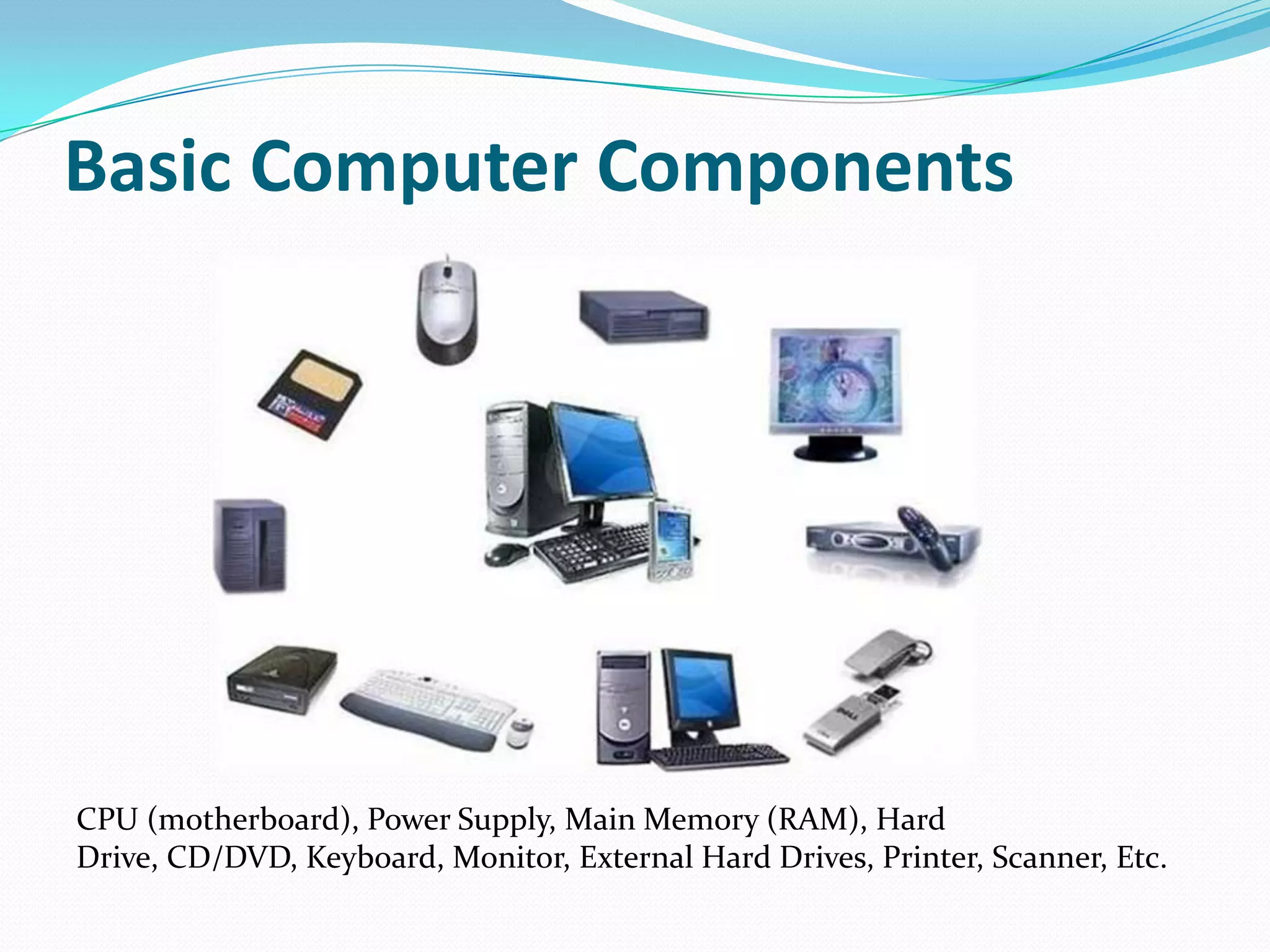
Computers are an essential part of our daily digital life. From online learning and office work to gaming, entertainment, banking, and communication, computers power almost everything we do in the modern world. Yet many users operate a computer every day without truly understanding its internal and external components. Knowing the parts of a computer and their functions not only improves your basic computer knowledge but also helps you troubleshoot issues, upgrade hardware, and use your system more efficiently.
This detailed guide explains computer hardware components, internal parts of a computer, external computer devices, and how each part works together to make a computer system function smoothly. This article is written in simple language, ideal for beginners, students, and anyone wanting strong computer basics, while also being useful for SEO and educational purposes.
What Is a Computer System
A computer system is an electronic machine that accepts data as input, processes it according to instructions, stores information, and produces output. The computer system is made up of hardware, software, and users. Hardware refers to the physical parts of a computer that you can see and touch. Software includes operating systems and applications, while users are the people who operate the computer.
This guide focuses mainly on computer hardware parts and their functions, as understanding hardware is the foundation of computer literacy.
Main Categories of Computer Parts
Computer parts are broadly divided into two major categories: internal components and external components. Internal components are located inside the computer cabinet or laptop body, while external components are connected from outside and are also known as peripheral devices.
Understanding both internal and external parts of a computer is important because each plays a unique role in system performance, speed, storage, and usability.
Central Processing Unit (CPU)
The Central Processing Unit, commonly known as the CPU, is the most important part of a computer. It is often called the brain of the computer because it performs calculations, executes instructions, and controls all operations of the computer system. Every command you give to the computer, whether opening a file or browsing the internet, is processed by the CPU.
The CPU consists of three main components: the Arithmetic Logic Unit, which performs mathematical and logical operations, the Control Unit, which directs data flow and instructions, and Registers, which temporarily store data for quick access. CPU performance is measured in terms of clock speed, cores, and threads, which directly impact multitasking and overall system speed.
Motherboard
The motherboard is the main circuit board of the computer. It acts as the central hub that connects all internal components such as the CPU, RAM, storage devices, graphics card, and power supply. Without the motherboard, communication between computer parts would not be possible.
The motherboard contains slots, ports, connectors, and chipsets that allow different hardware components to work together. Choosing the right motherboard is important when upgrading a computer because it determines compatibility with processors, memory, and expansion cards.
Random Access Memory (RAM)
RAM, or Random Access Memory, is a type of primary memory that temporarily stores data and instructions that the CPU needs while performing tasks. RAM is much faster than storage devices like hard drives and SSDs, which makes it crucial for system performance.
When you open applications, browse websites, or edit documents, data is loaded into RAM for quick access. More RAM allows better multitasking and smoother performance. However, RAM is volatile memory, meaning all stored data is erased when the computer is turned off.
Hard Disk Drive (HDD)
The Hard Disk Drive is a traditional storage device used to store operating systems, software, files, documents, photos, and videos. HDDs use spinning magnetic disks to read and write data and are known for offering large storage capacity at a lower cost.
Although HDDs are slower compared to modern storage options, they are still commonly used for mass storage. Understanding the function of a hard disk drive helps users manage data storage efficiently and identify performance bottlenecks.
Solid State Drive (SSD)
A Solid State Drive is a modern storage device that stores data using flash memory instead of spinning disks. SSDs are significantly faster than HDDs, resulting in quicker boot times, faster file access, and improved overall system performance.
SSDs are more durable, energy efficient, and silent compared to hard drives. Many modern computers use SSDs as primary storage, sometimes combined with HDDs for additional space.
Power Supply Unit (PSU)
The Power Supply Unit is responsible for supplying electrical power to all components of the computer. It converts electricity from the wall outlet into usable power for the motherboard, CPU, storage devices, and other hardware components.
A reliable power supply is essential for system stability and safety. Poor-quality PSUs can cause system crashes, hardware damage, or data loss. Understanding the role of the power supply helps in building and maintaining a stable computer system.
Graphics Processing Unit (GPU)
The Graphics Processing Unit, also known as the graphics card or video card, handles visual output and graphical processing. It is responsible for rendering images, videos, animations, and 3D graphics displayed on the monitor.
While basic computers rely on integrated graphics, dedicated GPUs are used for gaming, video editing, graphic design, and professional applications. A powerful GPU improves visual quality, frame rates, and overall multimedia performance.
Cooling System
The cooling system prevents the computer from overheating by dissipating heat generated by internal components. It includes cooling fans, heat sinks, and sometimes liquid cooling solutions.
The CPU and GPU generate significant heat during operation, and without proper cooling, the system may slow down or shut down to prevent damage. Efficient cooling improves performance, longevity, and reliability of computer hardware.
Computer Case or Cabinet
The computer case, also called the cabinet or chassis, houses all internal components of a desktop computer. It provides physical protection, airflow, and organization for hardware parts.
Computer cases come in various sizes and designs, supporting different motherboard types and cooling configurations. A good case helps maintain proper airflow and makes upgrades and maintenance easier.
Monitor
The monitor is an output device that displays visual information generated by the computer. It shows text, images, videos, and graphical interfaces that allow users to interact with the system.
Monitor quality is determined by resolution, screen size, refresh rate, and panel type. A good monitor enhances productivity, reduces eye strain, and improves the overall user experience.
Keyboard
The keyboard is an input device used to enter text, numbers, and commands into the computer. It contains keys for letters, numbers, symbols, and function commands.
Keyboards are essential for typing documents, coding, gaming, and performing shortcuts. Different types of keyboards, such as mechanical and membrane keyboards, offer varying typing experiences.
Mouse
The mouse is a pointing device that allows users to move the cursor, select items, and interact with graphical interfaces. It plays a key role in navigating the operating system and applications.
Modern mice come with features like adjustable DPI, programmable buttons, and wireless connectivity, improving efficiency and comfort during computer use.
Speakers and Headphones
Speakers and headphones are output devices that produce sound from the computer. They are used for listening to music, watching videos, gaming, video calls, and online learning.
Audio quality depends on sound cards, drivers, and the output device itself. Good audio devices enhance entertainment and communication experiences.
Printer
A printer is an output device that produces physical copies of digital documents and images. It is commonly used in offices, schools, and homes for printing reports, assignments, and photos.
Printers can be inkjet, laser, or multifunction devices, each designed for specific printing needs. Understanding printer functions helps users choose the right device and maintain it properly.
Scanner
The scanner is an input device that converts physical documents and images into digital format. Scanners are widely used for document storage, sharing, and editing.
Many modern printers include built-in scanners, making them versatile tools for both home and office use.
Webcam
A webcam is an input device used to capture video and images. It is commonly used for video conferencing, online classes, streaming, and recording.
Webcams have become increasingly important in remote work and digital communication, making them a key computer accessory.
Network Interface Card
The Network Interface Card, or NIC, enables a computer to connect to networks and the internet. It can be wired or wireless, allowing data communication between devices.
Internet connectivity is essential for browsing, cloud computing, online collaboration, and software updates. A reliable network card ensures stable and fast connections.
Sound Card
The sound card processes audio input and output. It enables the computer to play sound through speakers and record audio through microphones.
While most modern motherboards have integrated sound cards, dedicated sound cards offer higher audio quality for professionals and enthusiasts.
Importance of Understanding Computer Parts
Learning about the parts of a computer and their functions builds strong computer fundamentals. It helps users make informed decisions when buying, upgrading, or repairing systems. It also improves troubleshooting skills and boosts confidence in using technology.
For students and beginners, understanding computer hardware forms the foundation for advanced topics like networking, cybersecurity, programming, and system administration.
Conclusion
A computer is made up of many interconnected parts, each performing a specific function to ensure smooth operation. From the CPU and motherboard to input and output devices, every component plays a vital role in the computer system. Understanding the parts of a computer and their functions empowers users to use technology effectively, maintain systems properly, and adapt to the evolving digital world.
Whether you are a beginner learning computer basics, a student preparing for exams, or a user aiming to improve digital skills, knowing how computer components work together is an essential step toward digital confidence and efficiency.