
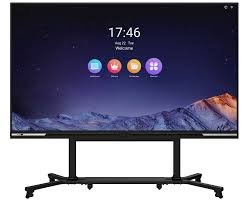
Screens and displays are the most important parts of modern devices. Whether you are using a smartphone, laptop, desktop computer, tablet, or smart TV, your entire experience depends on screen quality and display performance. From blurry text and low brightness to flickering screens and color issues, display problems can be frustrating. This detailed Screen & Display Help guide explains common screen issues, their causes, and effective solutions. It is written to help users understand display settings, fix screen problems, and improve visual comfort using simple and practical methods.
Understanding Screen and Display Technology
Modern screens use different display technologies such as LCD, LED, OLED, AMOLED, IPS, and Mini LED. Each technology has its own strengths and limitations. Screen resolution, refresh rate, color accuracy, brightness, and contrast ratio all affect display quality. Many screen issues occur because users are unaware of how display settings work. Learning basic screen and display facts is the first step toward applying the right screen fixes.
Common Screen and Display Problems
Screen problems can appear in many forms. Users often complain about dim screens, flickering displays, black screens, dead pixels, screen tearing, color distortion, and resolution issues. These display problems can be caused by incorrect settings, outdated drivers, software bugs, or hardware damage. Screen and display help focuses on identifying whether the issue is software-related or hardware-related before applying fixes.
Screen Brightness Issues and Fixes
Low or inconsistent brightness is a common display problem. To fix screen brightness issues, first check system brightness settings and adaptive brightness options. On laptops and smartphones, automatic brightness may reduce visibility in certain lighting conditions. Disabling adaptive brightness can provide consistent results. Updating display drivers and system software often fixes brightness bugs. Screen brightness help also includes cleaning the screen surface, as dirt and smudges can reduce perceived brightness.
Screen Flickering Problems and Solutions
Screen flickering can strain eyes and reduce productivity. Flickering is often caused by incompatible refresh rates, outdated graphics drivers, or faulty cables. Adjusting the screen refresh rate to a supported value fixes many flickering issues. Updating graphics drivers improves stability and compatibility. For external monitors, using high-quality cables and secure connections is an important screen and display fix.
Resolution and Scaling Issues
Incorrect screen resolution makes text blurry and images distorted. Setting the display to its native resolution ensures the best visual quality. Scaling problems occur when text and icons appear too large or too small. Adjusting display scaling settings improves readability without affecting resolution. Screen and display help emphasizes using recommended resolution and proper scaling for comfortable viewing.
Color Display Problems and Calibration
Color accuracy is essential for designers, gamers, and everyday users. Washed-out colors, yellow tint, or overly saturated displays are common issues. Adjusting color profiles and disabling night mode or blue light filters can restore natural colors. Display calibration tools help fine-tune color balance and brightness. Screen and display help includes understanding color temperature and gamma settings for better accuracy.
Screen Tearing and Refresh Rate Fixes
Screen tearing happens when the display shows parts of multiple frames at once. This issue is common during gaming or video playback. Enabling vertical sync or adaptive sync technologies like FreeSync or G-Sync reduces screen tearing. Matching refresh rate settings with graphics output improves smoothness. Screen and display fixes for tearing focus on synchronization between hardware and software.
Dead Pixels and Stuck Pixels Help
Dead or stuck pixels appear as small dots that do not change color. While dead pixels are often hardware-related, stuck pixels may be fixed using pixel refresh techniques. Display testing tools help identify pixel issues. Screen and display help suggests checking warranty coverage for hardware-related pixel defects.
Touchscreen Display Problems and Fixes
Touchscreen issues include unresponsive areas, ghost touches, or inaccurate input. Cleaning the screen and removing screen protectors can improve touch sensitivity. Restarting the device fixes temporary glitches. Updating system software improves touchscreen drivers. Screen and display help for touchscreens focuses on both software calibration and physical maintenance.
External Monitor Display Issues
Using external monitors can introduce display problems like no signal, incorrect resolution, or screen flickering. Checking cable compatibility and input source selection is essential. Updating graphics drivers ensures proper detection. Adjusting display settings for multiple screens improves alignment and scaling. Screen and display help ensures smooth multi-monitor setups.
Laptop Screen Problems and Solutions
Laptop screens may suffer from dim backlight, flickering, or color inconsistency. Adjusting power settings prevents brightness reduction on battery mode. Updating BIOS and display drivers improves compatibility. Avoiding pressure on the screen prevents physical damage. Screen and display help for laptops emphasizes careful handling and proper settings.
Mobile Screen Display Issues
Smartphone screens face issues like unresponsive touch, discoloration, or screen burn-in. Adjusting brightness, disabling always-on display, and reducing static images help prevent burn-in. Updating the operating system fixes display bugs. Screen and display help for mobile devices focuses on both software settings and usage habits.
Screen Burn-In Prevention Tips
Screen burn-in occurs when static images remain visible permanently. OLED and AMOLED screens are more prone to burn-in. Reducing brightness, using dark mode, and enabling screen timeout minimize risk. Avoiding static images for long periods protects display health. Screen and display help includes preventive measures for long-term screen quality.
Blue Light and Eye Strain Reduction
Prolonged screen usage can cause eye strain and discomfort. Enabling blue light filters or night mode reduces eye fatigue. Adjusting brightness and contrast to match ambient lighting improves comfort. Taking regular breaks follows the 20-20-20 rule. Screen and display help prioritizes visual health and comfort.
Screen Cleaning and Maintenance Tips
Proper cleaning improves display clarity and longevity. Using microfiber cloths and screen-safe cleaners prevents scratches. Avoiding harsh chemicals protects screen coatings. Regular cleaning reduces glare and improves visibility. Screen and display help encourages gentle maintenance practices.
Display Driver Issues and Fixes
Outdated or corrupted display drivers cause many screen problems. Updating drivers from official sources improves performance and stability. Rolling back drivers can fix compatibility issues after updates. Screen and display help highlights the importance of keeping drivers up to date.
Graphics Card and Display Compatibility
Display issues may result from graphics card limitations. Ensuring the graphics card supports the monitor’s resolution and refresh rate is essential. Adjusting graphics settings improves compatibility. Screen and display help includes understanding hardware requirements for optimal performance.
Screen Settings Optimization Tips
Optimizing screen settings enhances clarity and comfort. Adjusting brightness, contrast, sharpness, and color settings improves visual experience. Using recommended presets saves time. Screen and display help focuses on balancing quality and comfort.
Screen Problems After System Updates
System updates can sometimes introduce display issues. Restarting the device and updating drivers resolves most problems. Resetting display settings restores defaults. Screen and display help suggests patience and proper troubleshooting after updates.
Smart TV Screen and Display Help
Smart TV displays face issues like blurry images, incorrect aspect ratio, or color distortion. Adjusting picture mode and resolution improves quality. Updating TV firmware fixes bugs. Screen and display help ensures better home entertainment experiences.
Preventing Future Screen and Display Issues
Preventive care reduces the risk of display problems. Keeping software updated, using quality cables, and avoiding physical stress protect screens. Proper brightness and timeout settings preserve display health. Screen and display help emphasizes long-term care.
Conclusion
Screen and display issues affect productivity, comfort, and enjoyment. This Screen & Display Help guide covers common problems, practical fixes, and preventive tips for all devices. By understanding display technology and applying these screen fixes, users can improve visual quality, reduce eye strain, and extend screen lifespan. Staying informed and proactive ensures a clear, comfortable, and reliable display experience every day.